Using AI to Support Quality Assurance of Images and Alt Text in Accessible Publications
How Fido combines automated checks, computer vision and publishing context to identify images that need human attention
Images are among the most difficult parts of an accessible publication to quality-assure. Conventional accessibility checkers can determine whether an image has an alt-text field, but they cannot reliably judge whether the image should be treated as informative or decorative, whether the description conveys the right information, or whether the visual content should instead have been represented as structured text, a table or digital mathematics.
AI offers a useful way to extend quality assurance into this more subjective territory. It can inspect the image itself, compare it with its alt text and surrounding content, and highlight cases that deserve review. The aim is not to let AI certify accessibility or replace an experienced editor. It is to make human review faster, more consistent and better focused.
The quality-assurance gap
Automated tools are good at finding clear structural failures: a missing alt attribute, an invalid file reference or an image that has not been given an accessibility status. The harder problems begin once a text alternative is present. A filename such as file001.jpg is technically text, but it is not a useful description. A fluent description may still be inaccurate, repetitive, in the wrong language or irrelevant to the image’s purpose in the publication.
Context is central. The same image might require a description in one publication and be decorative in another. Nearby prose may already provide the necessary information, making repeated alt text an annoyance rather than a benefit. Established accessibility guidance likewise distinguishes informative, functional, complex and decorative images, and stresses that the text alternative should reflect the image’s purpose rather than simply catalogue what is visible.
Format also matters. A screenshot of a table should usually become a real table. Mathematical notation should use the accessible digital-math mechanism supported by the target format. A complex visual may need information in the body of the publication rather than an excessively long alt-text field. Quality assurance therefore has to consider the image, its description, its context and its intended output format together.
Fido’s two-pass approach
Fido approaches this task as an assisted review rather than a single AI prompt or scoring formula. Each image goes through two passes, followed by a merge step. Some findings are deterministic, while others require visual and editorial judgement.
Pass A: local checks
The first pass checks information that can be evaluated locally and consistently, such as whether alt text is missing, empty or apparently populated with a placeholder or filename; whether an image marked as decorative has been given a description; whether the same alt text appears on another image; and whether basic file properties suggest a possible problem. Fido can also use perceptual hashing to identify repeated images even when their dimensions or resolution differ, helping reviewers deal consistently with recurring logos and other repeated artwork.
Pass B: visual and contextual assessment
In the second pass, a vision-capable model is given the image together with its alt text, accessibility status, nearby text, publication format and the findings from the local checks. The model is asked to assess the relationship between these pieces of evidence, considering whether the existing treatment is appropriate for this particular publication.
Merging the evidence
The two passes are merged conservatively. Confirmed local failures remain visible, while the model can escalate an otherwise acceptable result when the pixels or context reveal a substantive issue. A low-resolution warning is treated differently: dimensions alone are only a hint, so Fido asks the visual model to judge whether the content is likely to remain usable when magnified. If the image has been classified by Fido (or the user) as a chart, diagram, map, or screenshot then we apply a higher threshold for the resolution.
Each review ends with one of four practical outcomes: Likely OK, OK with caveat, Needs attention or Uncertain. “Uncertain” is used when the evidence is insufficient, the model response cannot be interpreted safely, or the image file is unavailable.
What Fido assesses
Whether the description is useful
Fido looks for obvious substitutes for meaningful description, including filenames, generic labels and placeholders. It also asks the model to judge whether the wording is accurate, specific enough, unnecessarily verbose, grammatically sound and complete when important text appears inside the image. These judgements are applied carefully: fragments may be entirely appropriate for alt text, regional spelling is not an error, and a name should not be challenged merely because the model is unsure of it.
Whether the decorative status seems appropriate
An informative image that has been marked decorative can withhold essential content from a screen-reader user. Conversely, describing a border, spacer or purely ornamental flourish adds clutter. Fido therefore compares the declared status with both the image and its context, while deliberately avoiding overconfidence in borderline cases.
Whether another representation is needed
Good alt text does not make every visual accessible. Fido flags images of tables that should be encoded as real tables and images of mathematics that should be converted to the digital-math representation supported by the publication format. It can also identify probable orientation errors and joined or multi-panel figures that may be clearer if separated. The rules are not mechanical: a panorama, an inset diagram or a comic telling one continuous story may be entirely appropriate as a single image.
Whether the image remains usable when enlarged
Resolution is assessed in relation to content, not by a universal pixel threshold. Charts, maps, screenshots, labelled diagrams and images of text can become unreadable sooner than ordinary photographs. A slightly small photograph may deserve only a caveat, whereas a labelled graphic that will not survive substantial magnification needs attention. Vector graphics and tiny decorative icons should not be flagged simply because a preview appears soft.
Whether the image is obscured by a watermark
Images taken from watermarked source files often keep a faint stamp, seal or diagonal wordmark, such as “SAMPLE” or “DRAFT”, running across the picture. When an image is cut from a watermarked PDF page the mark frequently survives in the raster, and the same fragment tends to recur across images from that document. Fido asks the visual model to detect this and to recommend sourcing a clean copy, while leaving genuine captions, credit lines and brand logos that belong to the subject unflagged.
Whether the alt text fits the publication
The model checks for descriptions that merely repeat nearby prose, use a different language from the publication or fail to account for information already available to the reader. It is instructed not to invent missing book context. This makes the assessment closer to editorial review than generic image captioning.
Format-aware guidance
Alongside its verdict, Fido provides practical suggestions that take account of both the publication format and the tool being used. This guidance appears in the generated report and directly in the image-tool dialog, so reviewers can see not only that an image needs attention, but also how they might address the issue in their current workflow.
The advice is tailored to the format of the publication. The same underlying problem may require a different remedy in PDF, PowerPoint, EPUB, HTML, Word or an InDesign (IDML) source file. For example, an EPUB can use short alt text with an extended description where appropriate, whereas in Word a longer explanation may be better placed in the document immediately after the image. Tables and mathematics should use the native accessible structures available in the target format rather than being forced into an alt-text field.
Keeping people in control
AI output is probabilistic and can be wrong. Fido is designed accordingly. It surfaces evidence and suggested actions rather than presenting its judgement as certification. Reviewers retain responsibility for the final decision.
The value lies in triage. A publication may contain hundreds of images, most of which are already handled correctly. By combining dependable local checks with contextual AI review, Fido can direct attention towards the smaller number of cases where human expertise will make the greatest difference.
How this works in practice
Fido supports two complementary quality-assurance workflows. A command-line assessment can review all the images in a publication and generate a report, making it suitable for batch processing and production pipelines. The interactive Image tool provides a more hands-on experience in which a reviewer can move through the images, inspect each result in context and make changes.
Command-line assessment
The command-line workflow is intended for assessing a complete publication in one operation. Fido extracts the images and relevant document information, runs the local and AI-assisted checks, and produces a report containing the verdict, the evidence behind it and suggested action. This approach is useful for identifying potential issues before detailed remediation begins, or for incorporating image assessment into an automated workflow. To assess all images and save the results to a specified folder, use:
fido image-report --input "D:\books\sample.epub" --assess --output "D:\reports\sample-images"
For an initial review, the user can instead submit a sample of the publication’s images for AI assessment. The sample is stratified: every image with a confirmed local failure is included first, and the remaining places are spread through the publication and across the different image types so the selection stays representative. Small publications are assessed in full regardless of the percentage requested. The following command assesses 25 per cent of the images in a PowerPoint slide deck:
fido image-report --input "D:\books\sample.pptx" --percent 25
The report allows reviewers to concentrate on the images marked Needs attention or Uncertain, while still retaining the results for images judged Likely OK or OK with caveat. Because the suggestions are format-aware, the report can recommend different remedies for Word, PowerPoint, EPUB, HTML, PDF or InDesign rather than presenting the same generic advice in every case.
Flags recorded in the report and JSON file
Alongside the HTML report, each run is written to a JSON file for use in scripts and production pipelines. For every image the JSON records which pass produced the result (local heuristics, the visual model, or an error), the local flags, and the merged list of issue codes. Those codes are listed below.
| Flag | What it detects |
| low_resolution | The image is likely to become unusable at around 400% magnification. The local pass raises it from the pixel size; the visual model confirms it against the content. |
| likely_wrong_orientation | The content looks rotated, sideways or upside-down. |
| joined_images | Several separate images or panels are combined in one picture and may need to be split. |
| visible_watermark | A stamp, seal or diagonal wordmark, for example SAMPLE or DRAFT, lies across the image. |
| likely_content_marked_decorative | The image is marked decorative but appears to carry information a reader needs. |
| likely_decorative_with_alt | The image is marked decorative but still carries alt text. |
| missing_alt | A content image has no alt text and no decorative status set. |
| placeholder_alt | The alt is a generic placeholder such as “image”, “photo 1”, “graphic” or “untitled”. |
| filename_as_alt | The alt is a file name, or repeats the stored image file name. |
| very_short_alt | The alt is less than 12 characters long, assumed too little to describe an image. |
| duplicate_alt | The same alt text is used on another, different image. |
| inaccurate_alt | The alt describes something the image does not show. |
| too_vague | The alt is accurate but not specific enough to convey the image’s purpose. |
| too_verbose | The alt is longer than it needs to be. |
| missing_text_in_image | Words shown in the picture are not conveyed in the alt. |
| spelling_or_grammar | The alt contains a clear spelling or grammar error. Text quoted from the image is not flagged. |
| wrong_language | The alt is written in a different natural language from the surrounding text. |
| image_of_table | The picture is a data table and should be rebuilt as a real table in the target format. |
| image_of_math | The picture is an equation and should be encoded as digital math for the target format. |
| repeats_surrounding_text | The alt restates information already given in the body text near the image. |
Interactive assessment with the Image tool
For a more interactive workflow, the Image tool is available within the Fido app on Windows and Mac. It displays the current image with its existing alt text and relevant document context. The reviewer can move through the publication image by image, see Fido’s assessment and guidance, and decide what action to take.
In addition to quality-assurance information, the Image tool supports practical remediation tasks. Depending on the document and platform, a reviewer can edit or generate alt text, mark an image as decorative, convert visual content such as a table or mathematical expression into accessible content, and create a longer description where the format supports one. This keeps the assessment and the response to it within the same workflow.
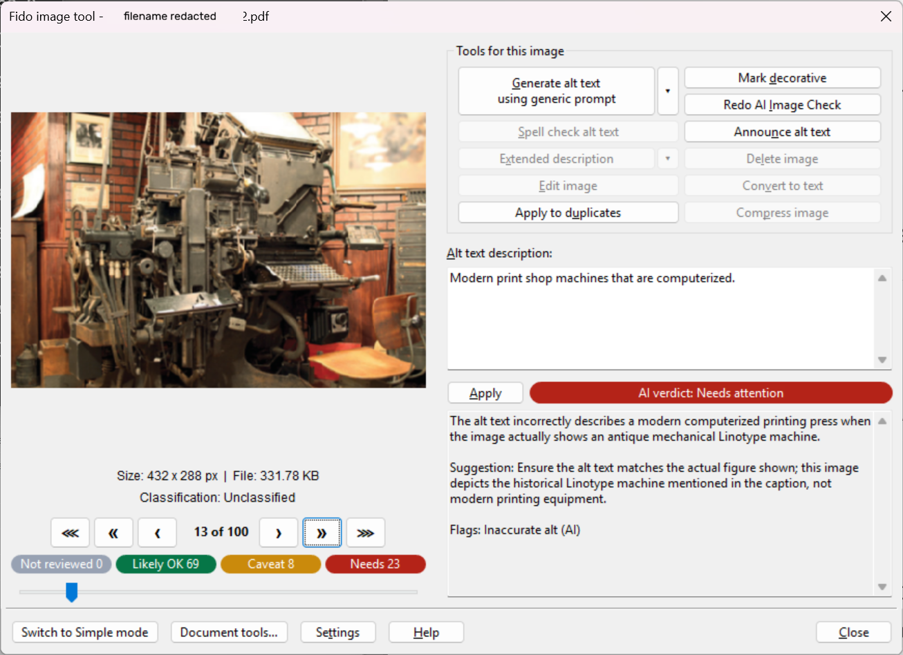
In the screenshot above, Fido assessed all 100 images in the publication: 69 were likely OK, 8 were OK with caveats, and 23 needed attention. The guidance for the selected image reads:
The alt text incorrectly describes a modern computerized printing press when the image actually shows an antique mechanical Linotype machine.
Suggestion: Ensure the alt text matches the actual figure shown; this image depicts the historical Linotype machine mentioned in the caption, not modern printing equipment.
Flags: Inaccurate alt (AI)
The command-line and interactive approaches serve different needs. The command line provides an overview of an entire publication, while the Image tool supports closer inspection and correction. Potentially, a production team could use the report to identify priorities and then use the Image tool to work through the flagged cases.
Models we have used successfully
Fido is designed to work with vision-capable models from several AI providers rather than depending on a single service. We have successfully used mid-tier models including Gemini 3.8 Flash, Claude Haiku 4.5, GPT-5.4 mini, Qwen3-VL 30B/32B and Mistral Small 4. Fido supports a broad choice of cloud AI services, which allows organisations to compare performance, cost, privacy terms, language support and availability.
We did not need to use the most expensive models. Smaller, older models produced more false positive results and incorrect guidance.
Examples of results
The following examples illustrate the types of issue that Fido can uncover.
Swapped alt text
In one publication, two images had valid-looking descriptions, but the descriptions had been assigned to the wrong images. This is the example given in the screenshot above. A conventional checker would have reported that both images contained alt text. By comparing each description with the corresponding pixels, Fido identified that the text did not match the image and flag both cases for attention.
Placeholder alt text
Fido can also detect descriptions that satisfy a technical requirement without providing meaningful information. Examples include text such as “image”, “photo 1” or a source filename. These cases can be identified during the local checks and reported without relying solely on the visual model.
Testing the tool on a broad range of sample publications revealed alt text of placeholder “XXXX”, which was reported to the organisation responsible.
Grammar and wording issues
Some descriptions are broadly accurate but contain spelling, grammar or wording problems that reduce clarity. Fido can distinguish these editorial issues from more serious failures such as an inaccurate description. The reviewer can then correct the wording without unnecessarily replacing an otherwise useful description.
This single image combines pinned note tasks and Figure 2.1 into one graphic, along with a visible background watermark.
Suggestion: In Word, consider splitting this into a native text bulleted list for the learning objectives and a separate image for Figure 2.1, and source a clean graphic without watermarks.
Flags: Joined / multi-panel image (AI); Watermark over the image (AI)
Conclusion
Fido’s image accessibility quality assurance approach combines deterministic validation, visual analysis, document context, format-specific guidance and accountable human review. Solutions like Fido are not automating expertise away but giving experts better evidence and more time to apply it.